Features

What Echolert does today

Echolert listens to the Chrome tabs you choose and tells you when something you care about is said. Everything on this page is in the current preview build, which is still being tested. Nothing is available to download yet.

Your goal and rules

For each tab, say in plain words what you care about. Echolert checks what is said against your rules, not against a list of keywords.
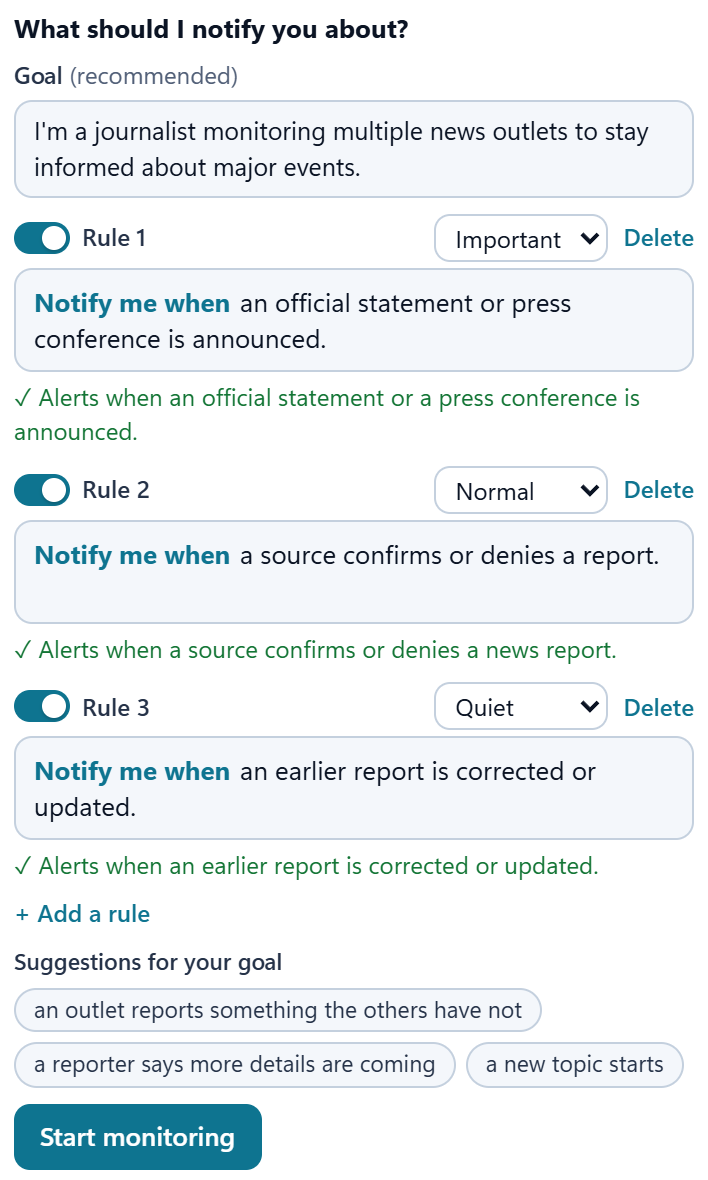
  • A goal (recommended). A sentence about why you are listening, for example “I'm a journalist monitoring multiple news outlets to stay informed about major events.” It gives the app context and never sends an alert by itself.
  • Up to 10 rules per tab. Each rule starts with the fixed words “Notify me when” and has its own on/off switch. Delete comes with Undo.
  • Three levels. Quiet alerts appear only in the Live feed and History. Normal alerts follow your alert settings. Important alerts keep their Windows notification on screen until you close it.
  • See how it understood you. Under each rule, the panel shows how the app understood it, and what audio alone can't tell.
  • Suggested rules. Suggestions refresh by themselves shortly after you stop typing your goal or a rule. One click adds one.
  • One alert for every rule it met. When the same words meet several rules, a single alert names them (up to three).
The rules for one tab, in light mode: a journalist's goal and three rules that start with “Notify me when”, set to Important, Normal and Quiet. A check mark under each rule shows how the app understood it, and suggested rules are listed below.
Preview build, sample data

Two ways to find what matters

Choose the alert method in Alert settings, and switch whenever you like. Either way, speech in the tab is first turned into text.

Recommended

App monitoring

The default. The app reads the meaning of what is said and checks it against your goal and rules, so “no giveaway today” is not mistaken for “the giveaway is live”.

Exact words

My phrases

Only the exact words you choose trigger an alert, and no text goes to the analysis provider. While it is selected, your goal and rules wait; one click on “Use app monitoring” switches back.

Alerts that quote the words said

The Live feed works like a chat. When a rule is met, an alert appears with the words that were said, so you can judge it yourself before you switch tabs.

  • The words, the time and the tab. Each alert quotes what was said, shows when it was said, names the rule it met and links back to the tab.
  • Follow along, if you like. Lines of what is being said appear between the alerts. Untick “Show what's being said” to see only alerts.
  • Clear status lines. Brief lines tell you when monitoring starts, loses or regains its connection, and stops.
  • Works in the background. Monitoring keeps running with the side panel closed, and reconnects by itself after a connection hiccup.

App alerts can be wrong or late - always check the source.
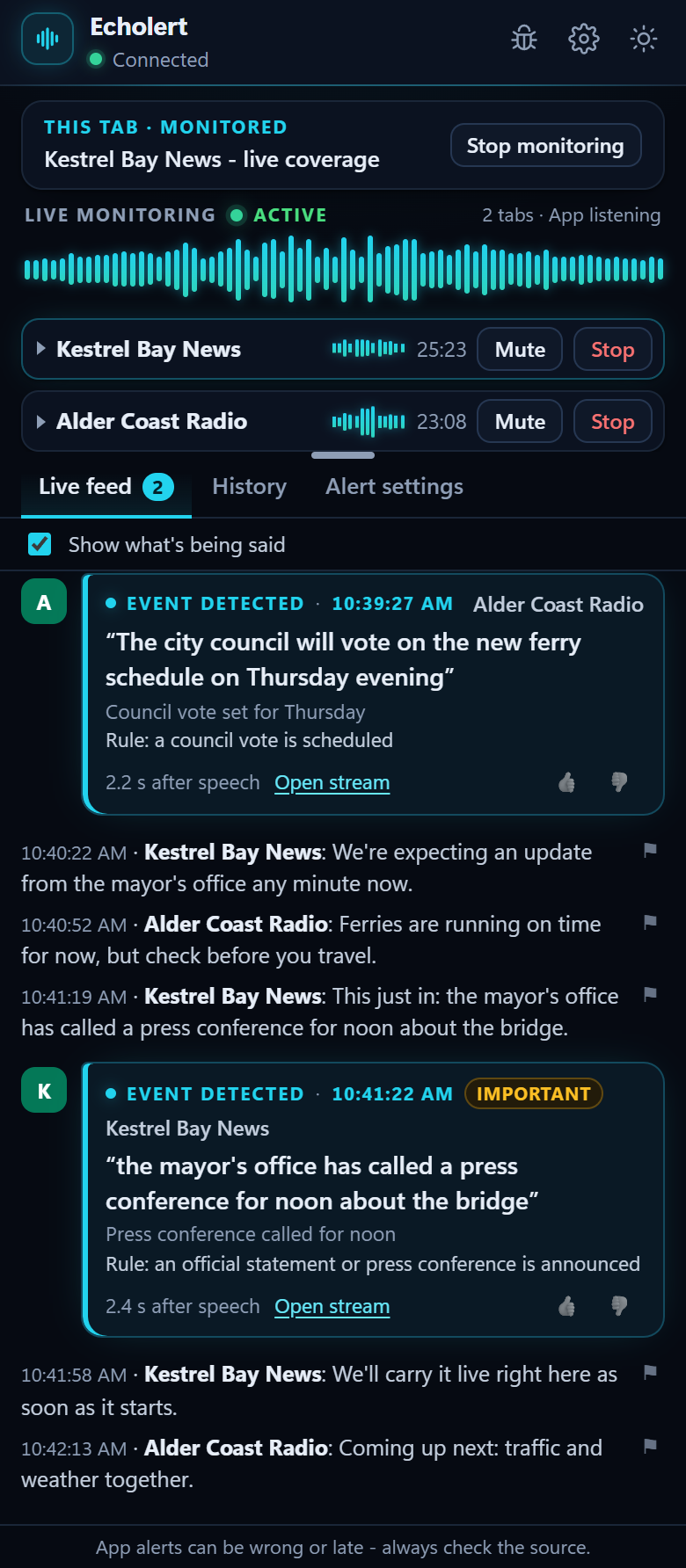
The Echolert side panel in dark mode, monitoring two news broadcasts. Its Live feed shows what is being said and two alerts that quote the words: a council vote set for Thursday, and an Important alert that the mayor's office called a press conference for noon.
Preview build, sample data

Several tabs at once

Monitor a few broadcasts side by side. Each tab keeps its own rules, so a news channel and a livestream never get mixed up.
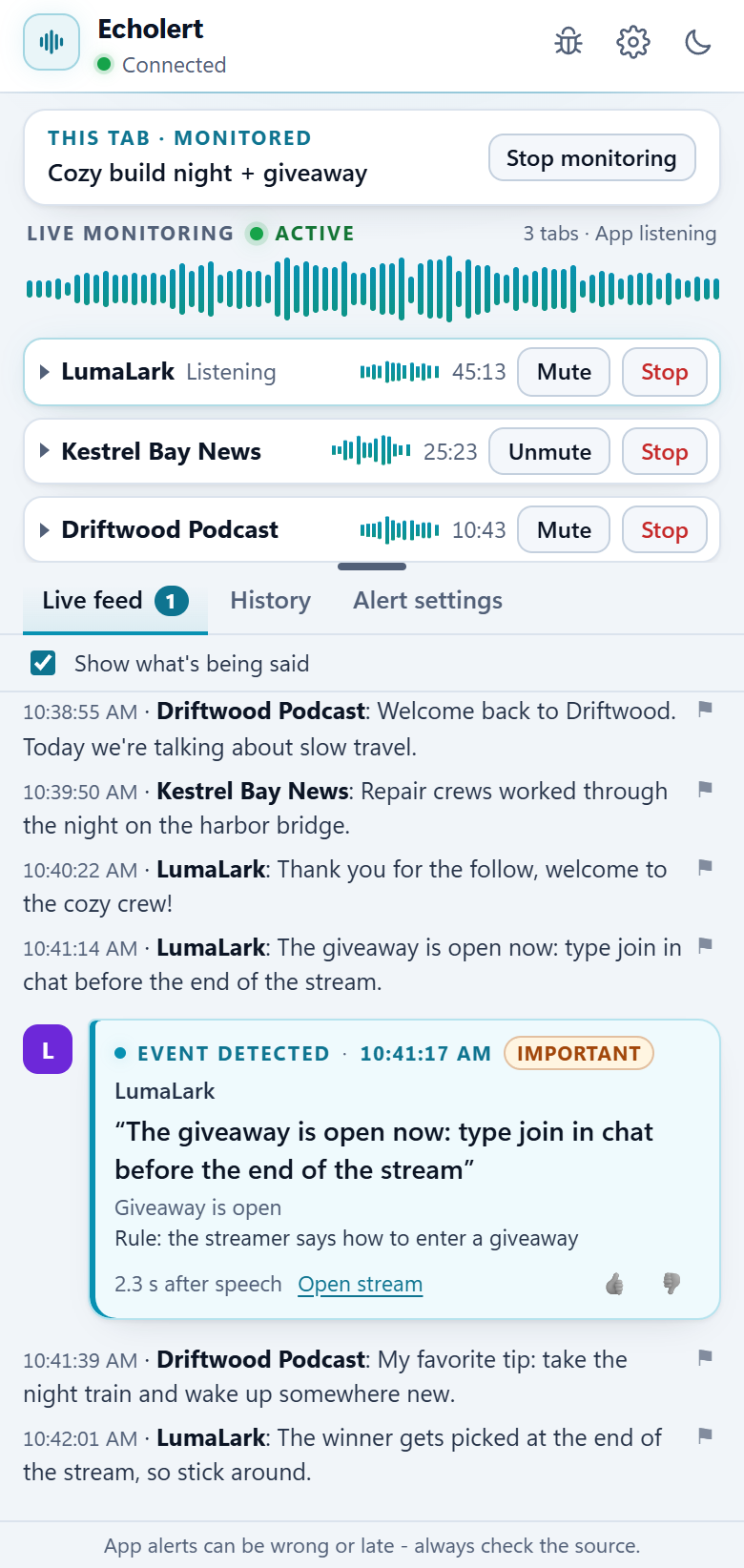
  • A card for each tab. Its own goal and rules (edit them for that tab only), a small live waveform, Mute, volume and Stop.
  • See who is talking. The big waveform under “Live monitoring” follows the loudest tab.
  • Tabs at once, by plan. 1 tab on Basic, up to 3 on Plus and up to 6 on Pro (six at once hasn't been tested in Chrome yet). See the planned plans.
The side panel in light mode, monitoring three tabs at once - a livestream, a news broadcast muted for you and a podcast - each with its own live waveform, Mute and Stop. The Live feed shows an Important alert: “The giveaway is open now: type join in chat before the end of the stream”.
Preview build, sample data

Sounds, notifications and voices

Decide how loudly each alert reaches you, from a quiet line in the Live feed to a notification that waits for you.
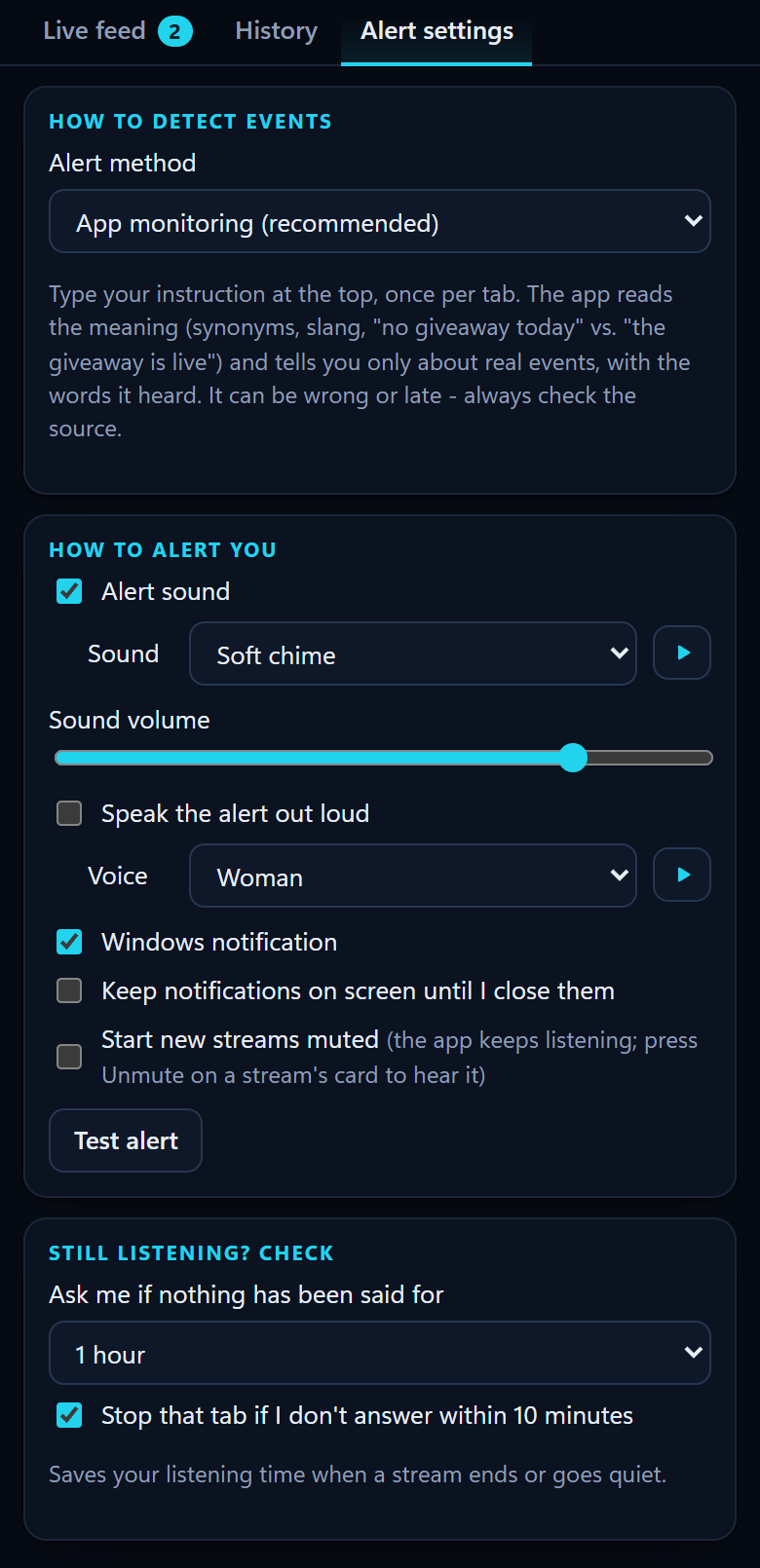
  • Five soft alert sounds, with a volume control and a play button to try each one.
  • Windows notifications. Keep them on screen until you close them if you like; alerts from Important rules always stay.
  • Spoken alerts, if you want them. Hear alerts read out in a woman's or a man's voice. Off until you turn it on; some voices are online services, as the privacy policy explains.
  • Test alert checks your sound and notifications in one click.
  • Start new streams muted for tabs you want to follow without hearing them.
Alert settings in dark mode: App monitoring chosen as the alert method, an alert sound (Soft chime) with a play button and a volume slider, spoken alerts with a voice choice, Windows notifications, a Test alert button and the Still listening? check, set to ask after 1 hour.
Preview build, sample data

Muting, History and more

Small things that make hours of listening easier.

Muting keeps the listening

The card's Mute, Chrome's tab mute and the video player's own mute all keep monitoring going. A player muted in the page is switched to the card's Mute for you, so you still hear nothing. Stop never changes what you hear.

“Still listening?”

After 1 hour with nothing said (choose 30 minutes to 4 hours, or off), the app asks. With no answer, that tab stops 10 minutes later, so a finished stream doesn't use up listening hours.

History

Your alerts, the newest 500, with the words that were said. Filter them by stream name or by rule, and rate each one with a thumbs up or down.

Light and dark

The deep navy and cyan look comes in a light and a dark theme. One click on the sun or moon switches; until then it follows Windows.

A panel you can resize

Drag the divider above the Live feed to give more room to the alerts or to your rules and tabs. Double-click to reset it; your choice is remembered on that computer.

Quick start

Click the Echolert icon in Chrome's toolbar on the tab you want, or press Alt+Shift+L. Chrome asks for that once per tab before any extension may listen to it.

Privacy controls

You decide what Echolert listens to, and you can take it back at any time.

Read the privacy policy (draft)
  • Asked once, plainly. A brief notice explains how your audio is handled before anything is captured. You are asked again only if it changes.
  • Withdraw anytime in Settings → Privacy & data. Every tab stops at once.
  • Clear history deletes your saved alerts and clears the Live feed.
  • Never your microphone. Only the tabs you start it on.
  • No calls or meetings. Call and meeting sites are blocked: monitoring does not start there.

Supported setup

  • Desktop Chrome 123 or later. Echolert is a Chrome extension.
  • Tested only on Windows 11. Other systems, phones and tablets haven't been tested and aren't supported.
  • English speech only, for now.
  • Sound only. It listens to the sound of a tab and alerts on what is said; it doesn't look at the video or your screen.
  • Private preview. Echolert isn't available to download yet.

See it in your kind of day

Example goals and rules for journalists, livestream viewers, people who follow business news and sports fans.